


Add your business to Bing using Bing Places for Business — it’s free and quick to start, and puts your business in front of Bing search and Bing Maps users right now. Here’s the fastest path:
- Sign in at the Bing Places dashboard using a Microsoft account.
- Claim or create your listing — search for your business name first; if it exists, claim it; if not, create a new one.
- Verify ownership via phone, email, or postcard.
Before you start, have these ready: business name, address, phone number, website URL, up to 10 business categories, and 3–5 photos. Phone and email verification are usually instant. A postcard PIN sent to an Australian address typically arrives within a few business days — allow a little longer if you’re in a regional or remote area.
Table of Contents
- What is Bing Places for Business and why does it matter?
- How to add your business to Bing, step by step
- How does Bing listing verification work in Australia?
- How to optimise your Bing listing for better visibility
- How your listing appears on Bing Maps
- Troubleshooting common Bing listing problems
- Key takeaways
- Why actively managing your Bing listing actually matters
- CantyDigital can handle your Bing listing and local SEO
What is Bing Places for Business and why does it matter?
Bing Places for Business is Microsoft’s free platform for controlling how your business appears in Bing search results and Bing Maps. Think of it as the Bing equivalent of Google Business Profile — same concept, different search engine, and a different slice of the market you’re currently missing if you haven’t listed.
The connection between Bing Places and Bing Maps is direct: your verified listing feeds the map pin, opening hours, photos, and contact details that appear when someone searches for your business or a category near your location. There’s no separate Bing Maps submission process.
Key benefits for Australian small and medium businesses:
- Free visibility in Bing search and Bing Maps with no ongoing cost for a standard listing.
- Full control over your business name, address, phone (NAP), website, hours, and photos.
- Local SEO uplift — a verified, complete listing signals legitimacy to Bing’s local algorithms and can improve your ranking in local results.
- Customer trust — accurate hours and photos reduce friction for customers deciding whether to visit or call.
How to add your business to Bing, step by step
Follow these steps in order. The whole process is relatively quick, depending on how much detail you add.
-
Sign in or create a Microsoft account. Go to the Bing Places dashboard and sign in. Use an email address tied to your business domain (e.g. hello@yourbusiness.com.au) rather than a personal Gmail or Outlook address — this matters for verification later.
-
Search for your existing listing. Type your business name and suburb. Bing often has partial data already pulled from the web. If your business appears, click Claim this business. If nothing comes up, select Create new listing.
-
Import from Google Business Profile (optional but recommended). If your Google Business Profile is already verified, you can import it directly into Bing Places. This pre-fills most fields and, in many cases, grants instant verification — saving you days of waiting for a postcard.
-
Complete all listing fields. Don’t skip anything here. Fill in:
- Business name (exact legal or trading name — no keyword stuffing)
- Address and phone number
- Website URL (use your homepage or a clean landing page — avoid URLs with tracking parameters)
- Business categories: choose the most precise primary category, then add relevant subcategories up to the 10-subcategory limit
- Business description (customer-focused, plain language)
- Opening hours, including any special hours
- Photos: upload at least one exterior shot and one interior shot; 3–5 images is a solid starting point
-
Save and proceed to verification. Review everything before saving — inconsistent NAP details (name, address, phone) across your website and directories will undermine your local SEO, so get it right here first.
Pro Tip: Choose the most specific primary category available. “Italian Restaurant” outperforms “Restaurant” every time because Bing uses it to match your listing to precise local searches.
Common pitfalls to avoid:
- Adding keywords to your business name field (e.g. “Smith Plumbing — Best Plumber Sydney”) — Bing can suspend listings for this.
- Using a tracking-parameter URL as your website link.
- Selecting a broad category when a precise one exists.
How does Bing listing verification work in Australia?
Verification is mandatory. Without it, you can’t fully manage the listing or have confidence it displays correctly. Bing requires you to prove ownership through one of three methods:
- Phone (SMS or automated call): Enter your business phone number, receive a code, enter it immediately. This is the fastest option — usually done in under two minutes.
- Email: Bing sends a verification link to your email address. The catch: email verification requires a domain-matched address — one that uses the same domain as your business website. A Gmail or Outlook address will typically be rejected, and Bing will fall back to postcard verification.
- Postcard: A PIN is mailed to your registered business address. In Australia, expect up to six business days for metro areas; regional and remote addresses may take longer.
Verification timeline at a glance:
| Method | Typical wait time (Australia) |
|---|---|
| Phone (SMS/call) | Immediate |
| Email (domain-matched) | Immediate |
| Postcard | Up to 6 business days (metro); longer in regional areas |
Troubleshooting verification problems:
- No code received by SMS: Confirm the number is in Australian format (+61 or 04XX XXX XXX), check you have signal, and request a resend.
- Email rejected: Switch to a domain-matched address or request postcard verification.
- PIN expired: Postcards are valid for a limited period. If yours has expired, log back into the dashboard and request a new one.
- Incorrect address: Update the address in the listing before requesting a new postcard — sending to a wrong address just restarts the clock.
How to optimise your Bing listing for better visibility
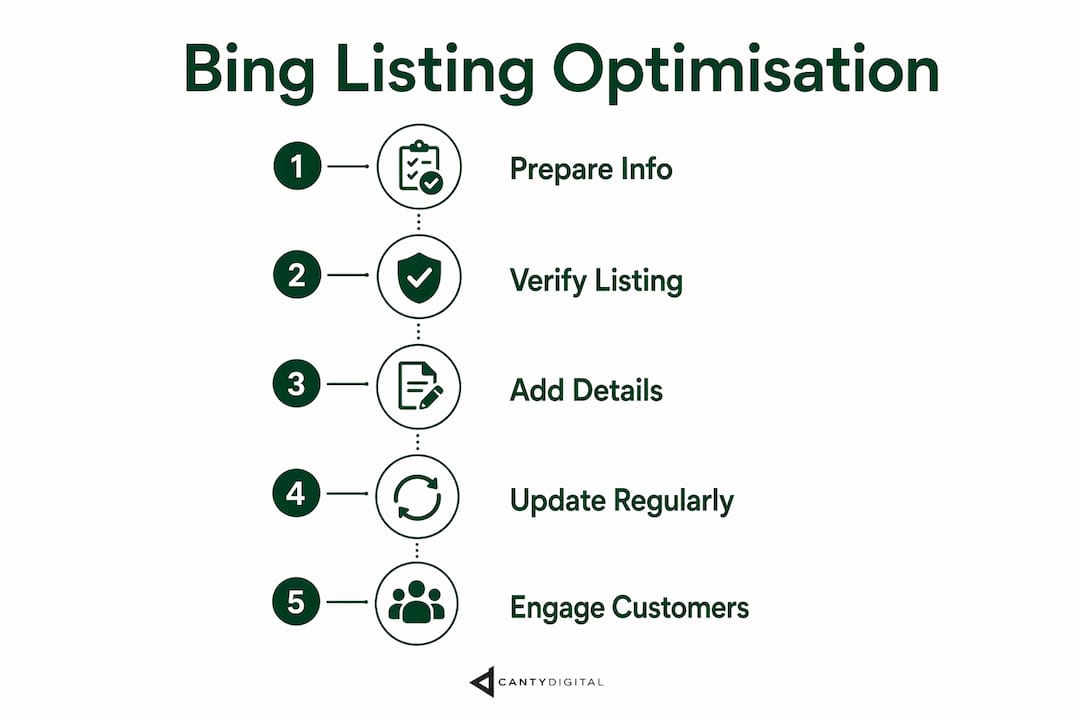
Getting listed is step one. Keeping the listing accurate and active is what actually moves the needle on local visibility. Marketers consistently find that regular listing updates signal freshness to Bing’s local algorithms — a listing that hasn’t been touched in 18 months looks stale compared to one updated last week.
Practical maintenance tasks:
- NAP consistency: Your business name, address, and phone must match exactly across your website, Bing Places, and every other directory. Even minor variations (St vs Street, or a missing unit number) can dilute your local SEO signals. CantyDigital’s guide to local SEO for small businesses covers this in more detail.
- Hours and special hours: Update public holidays, seasonal closures, and extended trading periods as soon as they’re confirmed. Outdated hours frustrate customers and damage trust.
- Photos: Refresh your photo set at least quarterly. Add new product shots, team photos, or seasonal images. Listings with current, relevant photos consistently outperform those with a single stock image.
- Categories: Revisit your category selections every six months. Bing occasionally adds new subcategories — a more precise match can improve your ranking for specific searches.
- Reviews: Monitor and respond to customer reviews where possible. A prompt, professional response to a negative review often matters more to prospective customers than the review itself.
- Dashboard analytics: Check impressions and click-through actions in the Bing Places dashboard. Pair this data with your website analytics to understand which listing elements are driving actual conversions.
Pro Tip: Set a recurring calendar reminder every quarter to review your Bing listing. It takes 10 minutes and keeps your listing competitive against businesses that set-and-forget.
For a broader view of how directory listings fit into your overall search strategy, updating your local SEO approach regularly is worth the effort.
How your listing appears on Bing Maps
Once your Bing Places listing is verified, it automatically populates your Bing Maps pin. There’s no separate submission. The pin pulls your address, hours, photos, phone number, and website link directly from the listing.
Map-specific tips:
- Check your pin location during setup. Bing sometimes places the pin slightly off — on the wrong side of a road, or at the wrong end of a building. Drag it to the correct position before saving. An inaccurate pin means customers walking or driving to you end up in the wrong spot.
- Multi-location businesses: Each physical address needs its own separate listing and its own verification. Don’t try to list multiple locations under one entry — Bing’s system treats each address as a distinct business. CantyDigital’s maps optimisation service handles this for businesses with several locations.
- Keep photos current: The images that appear in Bing Maps results pull from your Bing Places photo set. A fresh, professional exterior photo makes a real difference to click-through rates from map results.
Troubleshooting common Bing listing problems
Most issues fall into four categories. Here’s what to do with each.
Duplicate listings
Search for your business name in Bing before and after creating your listing. If duplicates exist, claim the correct one through the dashboard, then use the “Report a problem” or duplicate-removal option to flag the others. Leaving duplicates live splits your reviews and confuses customers.
No verification code received
For SMS: check the number format and request a resend. For email: confirm you’re using a domain-matched address, check your spam folder, and try again. If both fail, request postcard verification. Microsoft Support’s Bing Places article walks through the resend process step by step.
Suspended or limited listings
Suspensions usually happen because of policy violations — keyword-stuffed business names, misleading categories, or inaccurate addresses. Correct the offending content first, then submit an appeal through the Bing Places support form. Include screenshots of your corrections when you submit. Bing’s review process can take several business days, so document everything.
General support
The Microsoft Support help article for adding and managing business listings is the most reliable starting point. For complex issues, use the in-dashboard support form and keep a record of your case number.
Key takeaways
A verified, complete Bing Places listing is free to set up, takes under 30 minutes, and directly controls how your business appears in both Bing search and Bing Maps.
| Point | Details |
|---|---|
| Use a business domain email | A domain-matched email address enables instant email verification; Gmail and Outlook typically trigger postcard verification instead. |
| Postcard timing in Australia | Allow a few business days for metro areas; regional addresses may take longer. |
| Import from Google Business Profile | Importing a verified Google listing pre-fills your Bing data and can grant instant verification. |
| Update regularly, not once | Refreshing hours, photos, and categories signals freshness to Bing’s local algorithms and keeps your listing competitive. |
| CantyDigital can manage it for you | CantyDigital handles Bing Places setup, verification, category optimisation, and ongoing listing maintenance as part of its local SEO services. |
Why actively managing your Bing listing actually matters
Most business owners treat Bing as an afterthought — they set up a listing once, forget about it, and wonder why their local visibility isn’t improving. After 12 years working on local SEO for Australian businesses, the pattern is consistent: the listings that perform are the ones that get attention.
The businesses that see the clearest results from Bing Places aren’t doing anything complicated. They’re checking hours before every public holiday, swapping in a new photo after a fitout or a seasonal change, and making sure the phone number on Bing matches the one on their website. That consistency across directories is what Bing’s local algorithm rewards. It’s also what builds trust with customers who find you through map results and want to know you’re actually open before they drive over.
One thing people underestimate: Bing’s share of search in Australia is smaller than Google’s, but it’s not trivial — and it’s the default search engine on many Windows devices and Microsoft Edge browsers. Ignoring it means leaving a segment of your local market unserved, often with less competition than Google Maps for the same search terms. That’s a straightforward opportunity.
Treat Bing Places as part of your core local SEO stack, not a secondary task. The maintenance overhead is low. The cost is zero. The upside is real, consistent local visibility from a channel most of your competitors are neglecting.
CantyDigital can handle your Bing listing and local SEO
Setting up a Bing Places listing yourself is absolutely doable — this guide gives you everything you need. But if you’d rather have it done properly the first time, without the back-and-forth of verification issues or category missteps, CantyDigital takes care of the whole process.
CantyDigital is a Wollongong-based digital agency with 12 years of experience in local SEO, maps optimisation, and web design. For businesses that want more than a basic listing, the team creates and verifies Bing Places profiles, optimises categories and photos, resolves suspensions, and integrates listings into broader SEO growth plans that cover Google, Bing, and AI-driven search platforms. There are no lock-in contracts — just practical work that improves your local visibility.
If you’re also considering paid search alongside your listing, CantyDigital’s Microsoft Ads management pairs naturally with a verified Bing Places profile to capture high-intent local searches.
Ready to get your business found on Bing? Request a quote or local SEO audit from CantyDigital today.